Features

Everything a team leader needs to see, plan and report

From the first look in the morning to the report on Friday afternoon. Every screen below is the real product.

Dashboard

Opens on what needs attention, not on charts

One list of what needs attention, worst first, with filters. Then the rest of the picture.

  • Needs attention: overdue, milestones, blocked, stale, no tasks, at risk
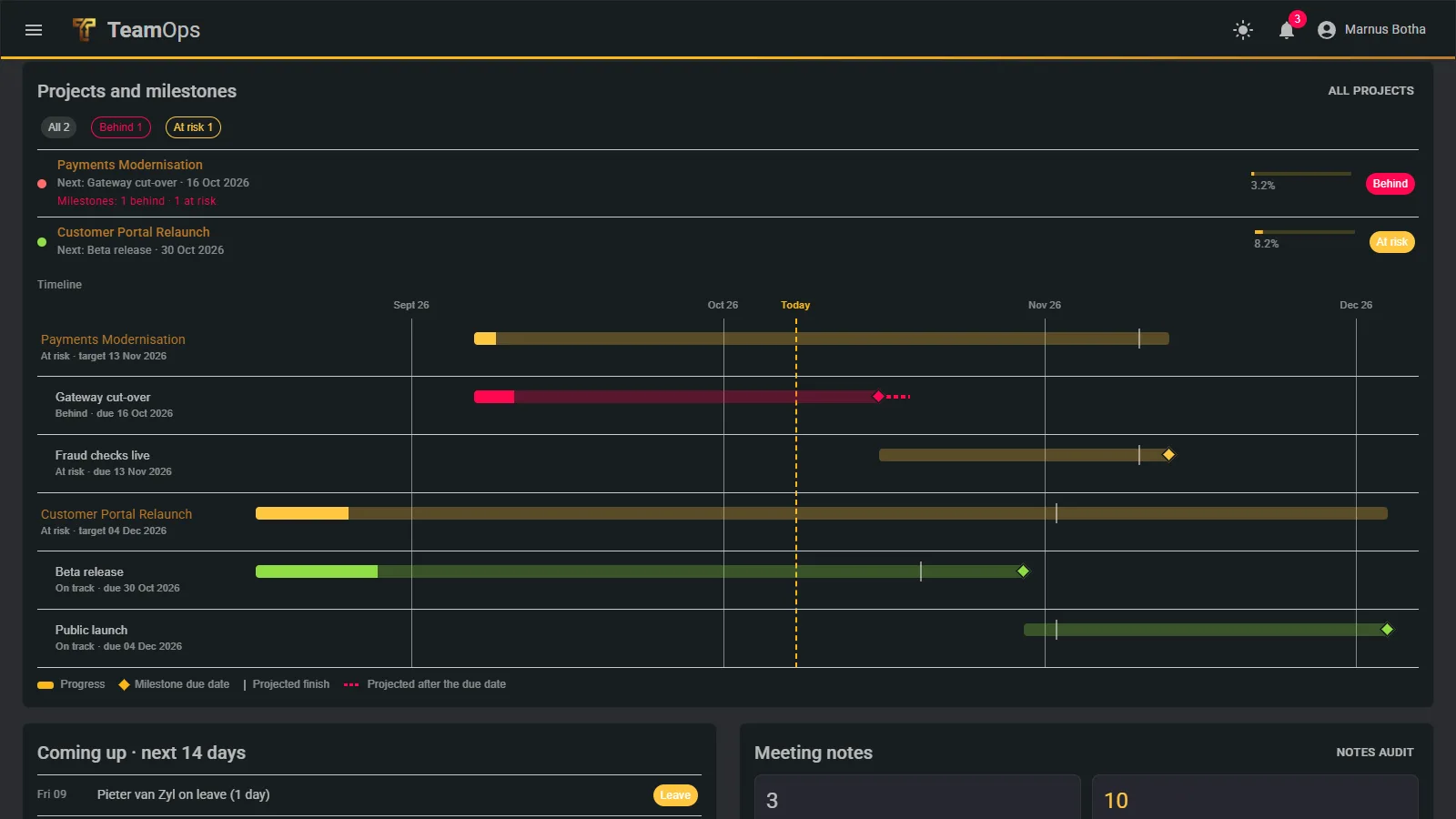
  • Projects and milestones: a timeline per project with progress and projected finish
  • This week: a progress bar, tiles by state and a burndown chart
  • Workload: assigned hours against available hours per person
  • Coming up: the next 14 days of due dates, the weekly lock, public holidays and leave
  • Team or me: switch between the whole team and your own view
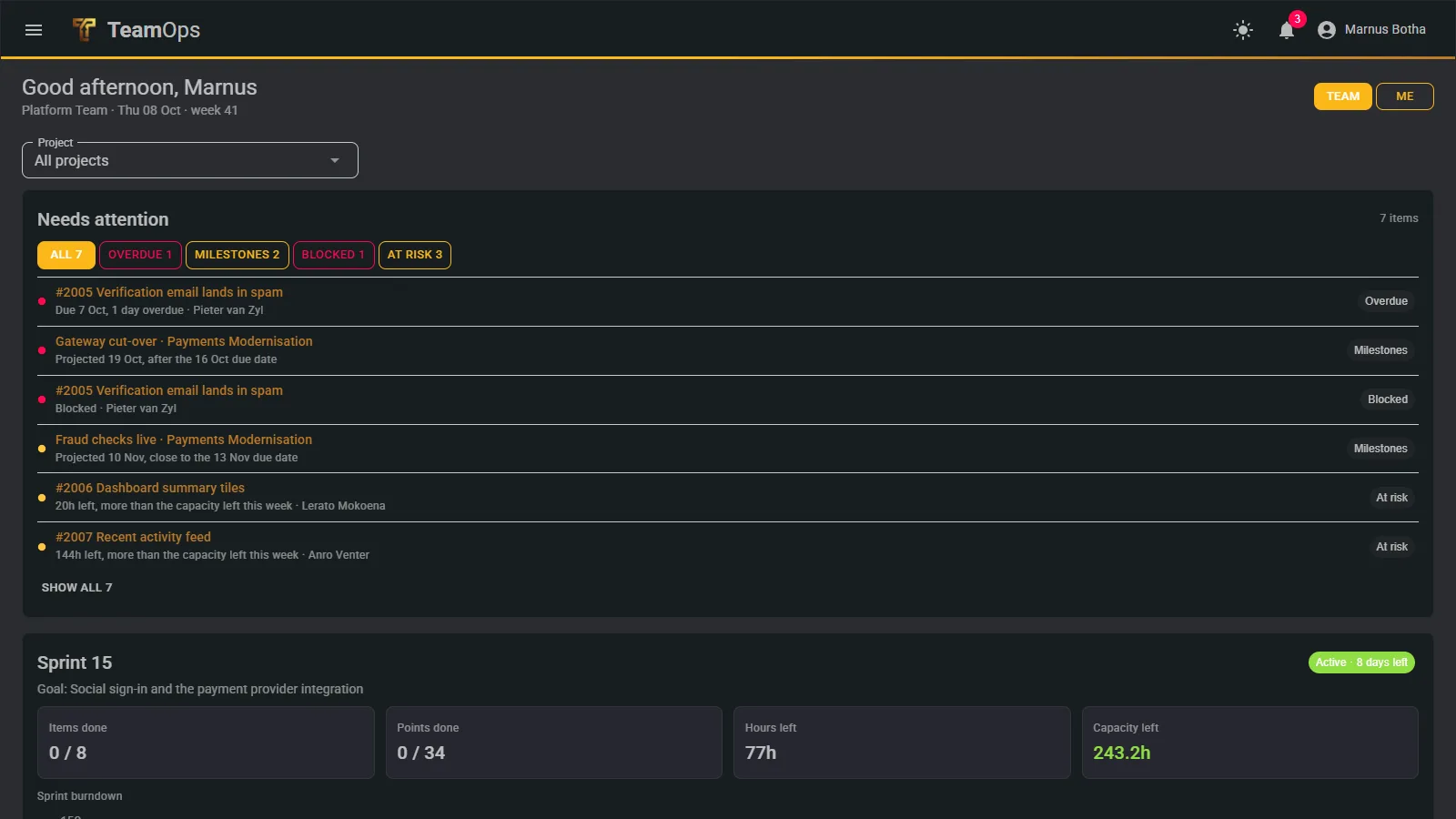
Dashboard with the needs-attention list

Weekly planning

Commit weekly, with an honest warning when it is in danger

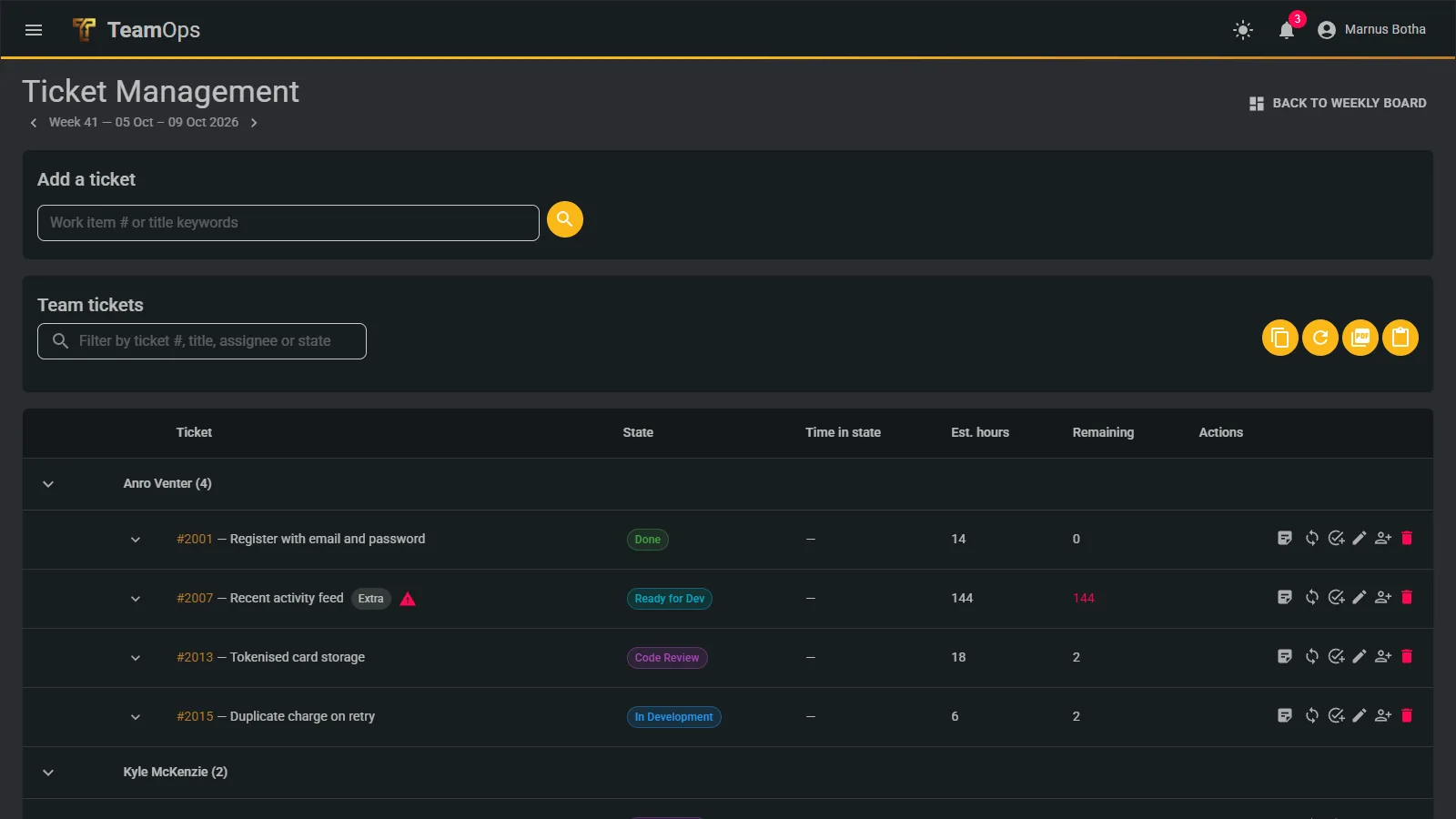
Search by number or title, commit tickets for the week, and copy unfinished tickets from last week or push them to next.

  • A ticket is at risk when its remaining hours exceed the assignee’s capacity to Friday
  • No tasks means no hour signal, so it is flagged separately
  • Assigned outside the team is flagged as a blocker
  • The commitment locks on Friday at 17:00 or earlier by hand
  • Tickets added after the lock are tracked as extras, apart from the baseline
  • Assigning a ticket notifies the assignee
Ticket management for the week, grouped by person

Weekly report

A weekly report that writes itself

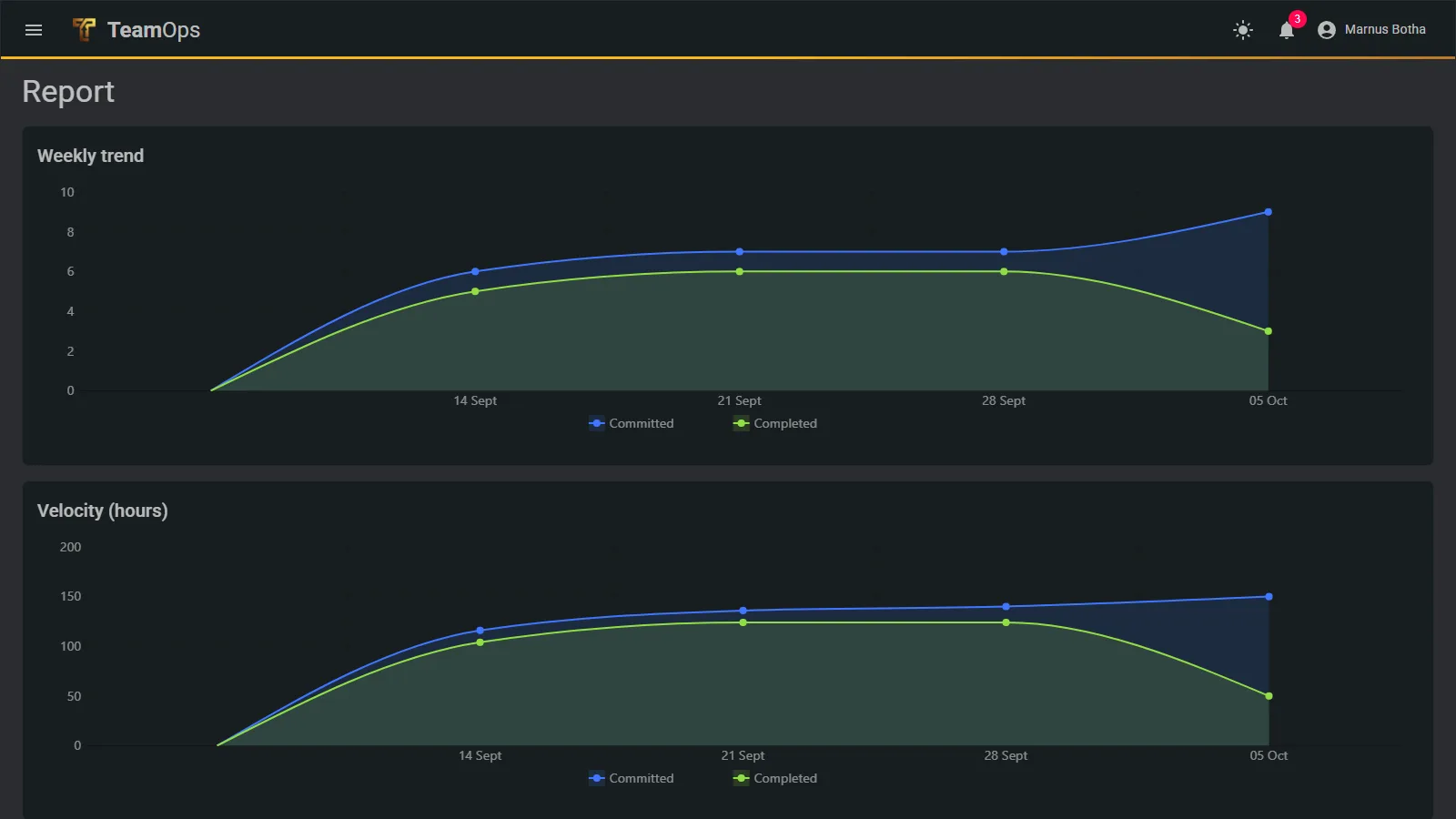
A trend chart, velocity in hours and a table per week, with one click to a PDF for the team.

  • Fixed by developer: credit goes to whoever held the ticket just before it moved to done or code review, so reassigning later does not move it
  • Older weeks can be back-filled from ticket history
  • PDF grouped by assignee with your logo and colours, downloaded or emailed to the roster
The weekly report with trend and velocity

The engine

Every plan is judged against real capacity

One capacity model drives the weekly board, the burndown, sprint capacity, workload bars and project projections, so they never disagree.

hours on a day = people not on leave × hours per workday
project hours = hours on a day × (1 − reactive share)

Zero on weekends and South African public holidays. The reactive share defaults to 20% and is set per team.

Calendar

Weekdays only, with South African public holidays from a public service.

Leave

Booked by the person, with no approval step; it reduces capacity everywhere immediately.

Urgent work

A share of every day is held back for bugs and urgent requests, so plans are not fantasy.

Projects and milestones

Multi-week work with a projected finish, not a hopeful one

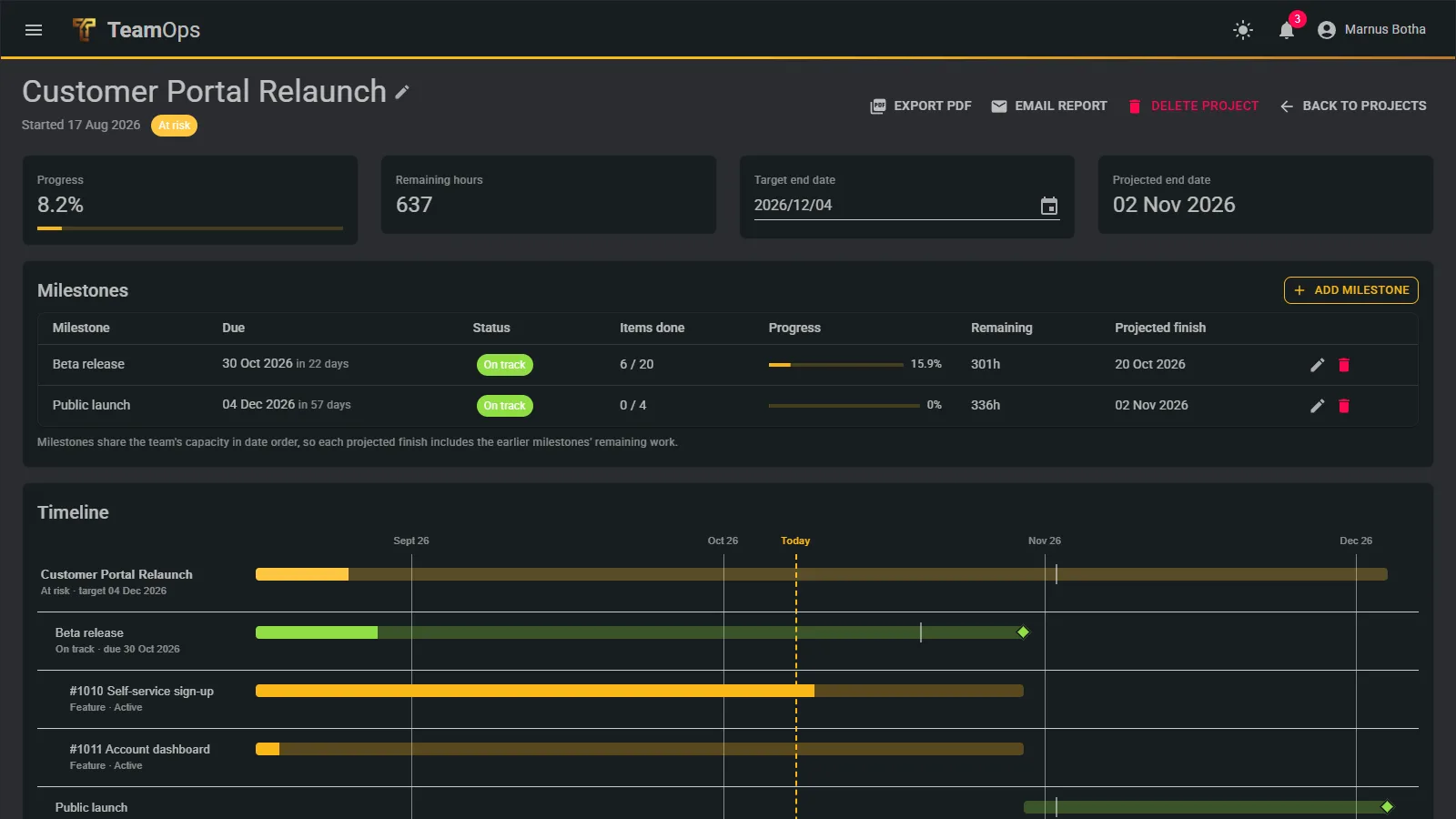
A project has a start date, an optional target end and milestones. Add epics or features by ticket number and the whole tree beneath is read and kept in step.

  • Milestones are named, dated checkpoints; items below inherit them
  • Progress comes from task hours; the projected finish applies team capacity day by day
  • One clear status from the numbers, using a worst-of rule
  • Table and timeline views; archive finished projects
  • Remaining hours per person feed the weekly workload check
The portfolio timeline of all projects and milestones

Project report

A management PDF in one click, headline included

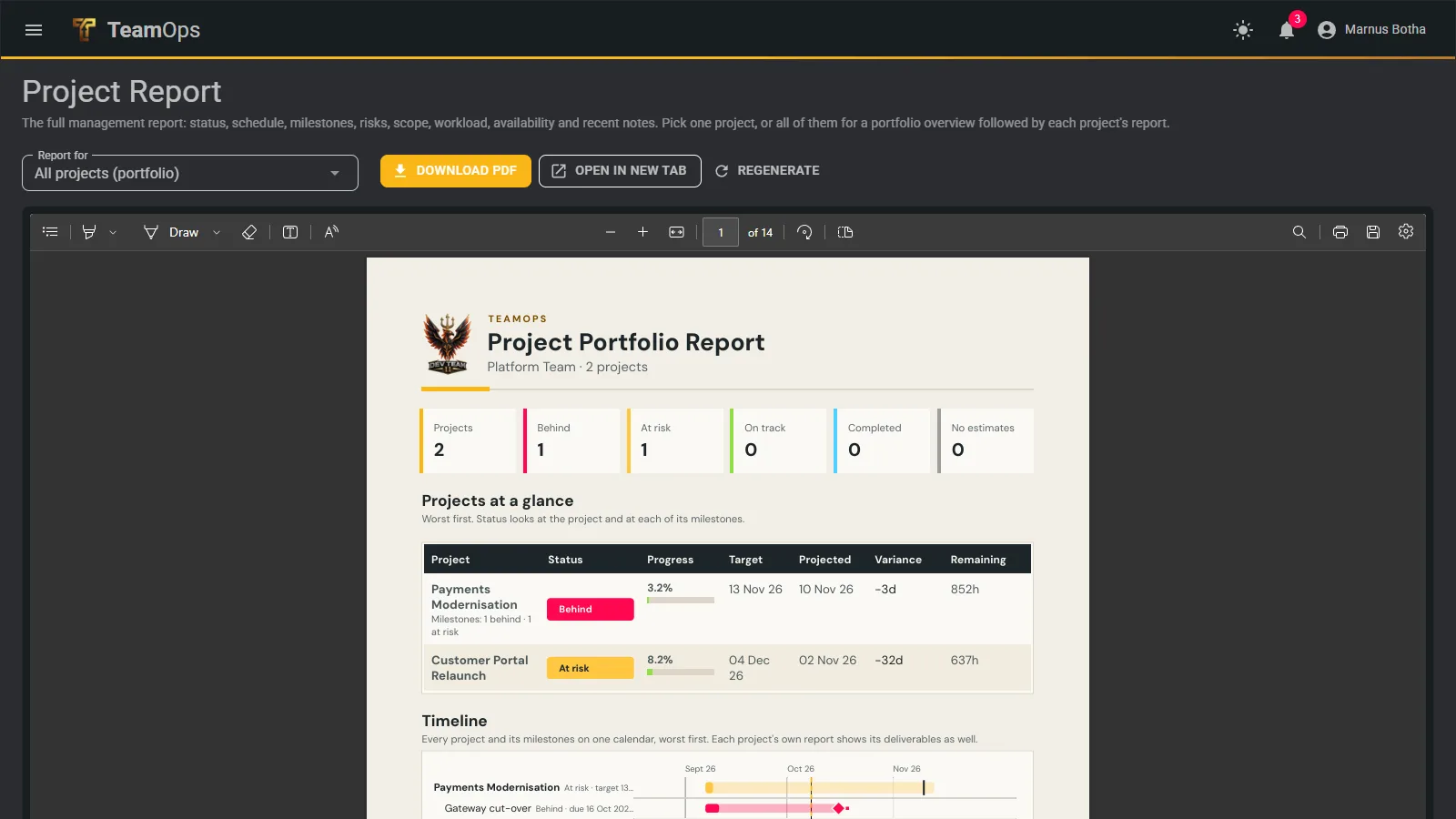
The project report gives managers what they need without a meeting: a plain-language headline, status, milestones and deliverables, previewed in the browser and downloadable as a PDF. A portfolio report covers all projects at once.

A project report previewed in the browser

See a project in detail

Open any project to see its items, their owners, remaining hours and which milestone each belongs to.

A project in detail with items and milestones

Built-in tracker

A complete tracker for teams without Azure DevOps

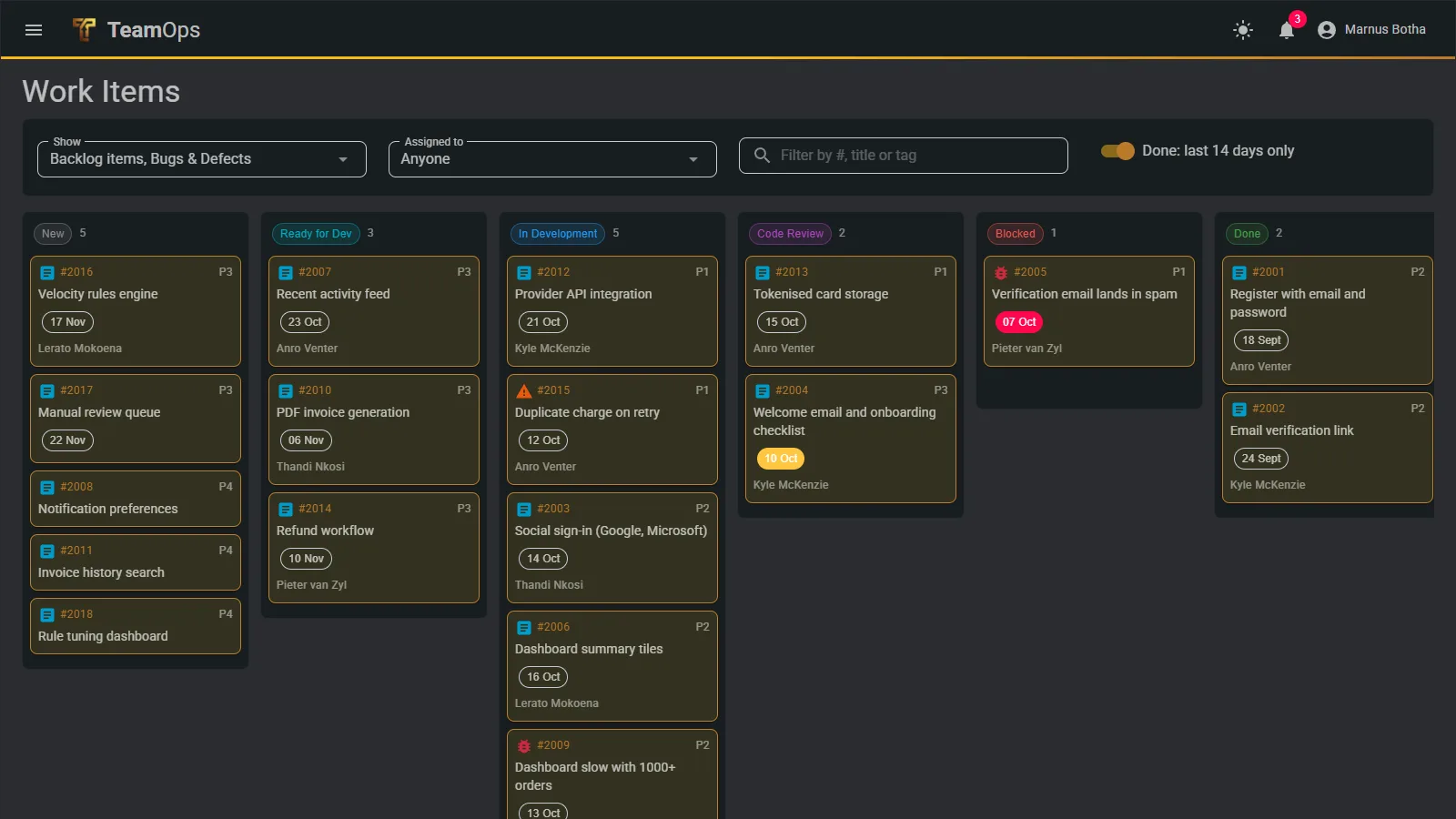
One fixed process: Epic, Feature, Backlog Item / Bug / Defect, Task. Tasks carry the hours; everything above rolls up.

  • List with saved views, tree and a drag-and-drop board
  • Markdown comments and @mentions that notify people
  • Attachments up to 10 MB, always safe downloads
  • A full history of every field change
  • Edit conflicts refused, naming who changed it
  • Priority, due date, estimates, area, tags and sprint
The tracker board with one column per state

Filter, save and share your views

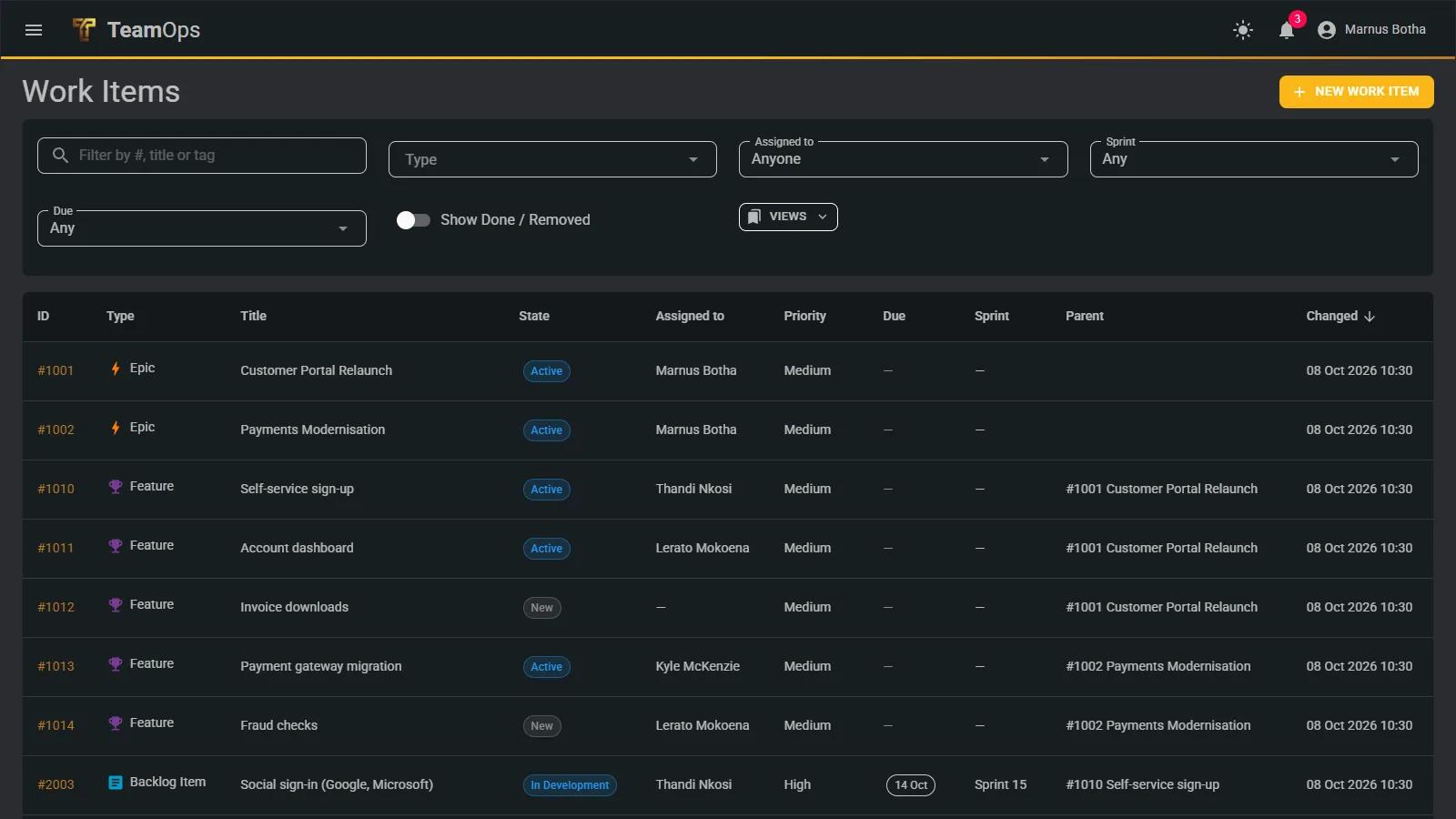
Filter by type, person, sprint and due date. Save a view for yourself or share it with the team.

The work items list with filters

Sprints

Sprints with a burndown that respects who is actually in

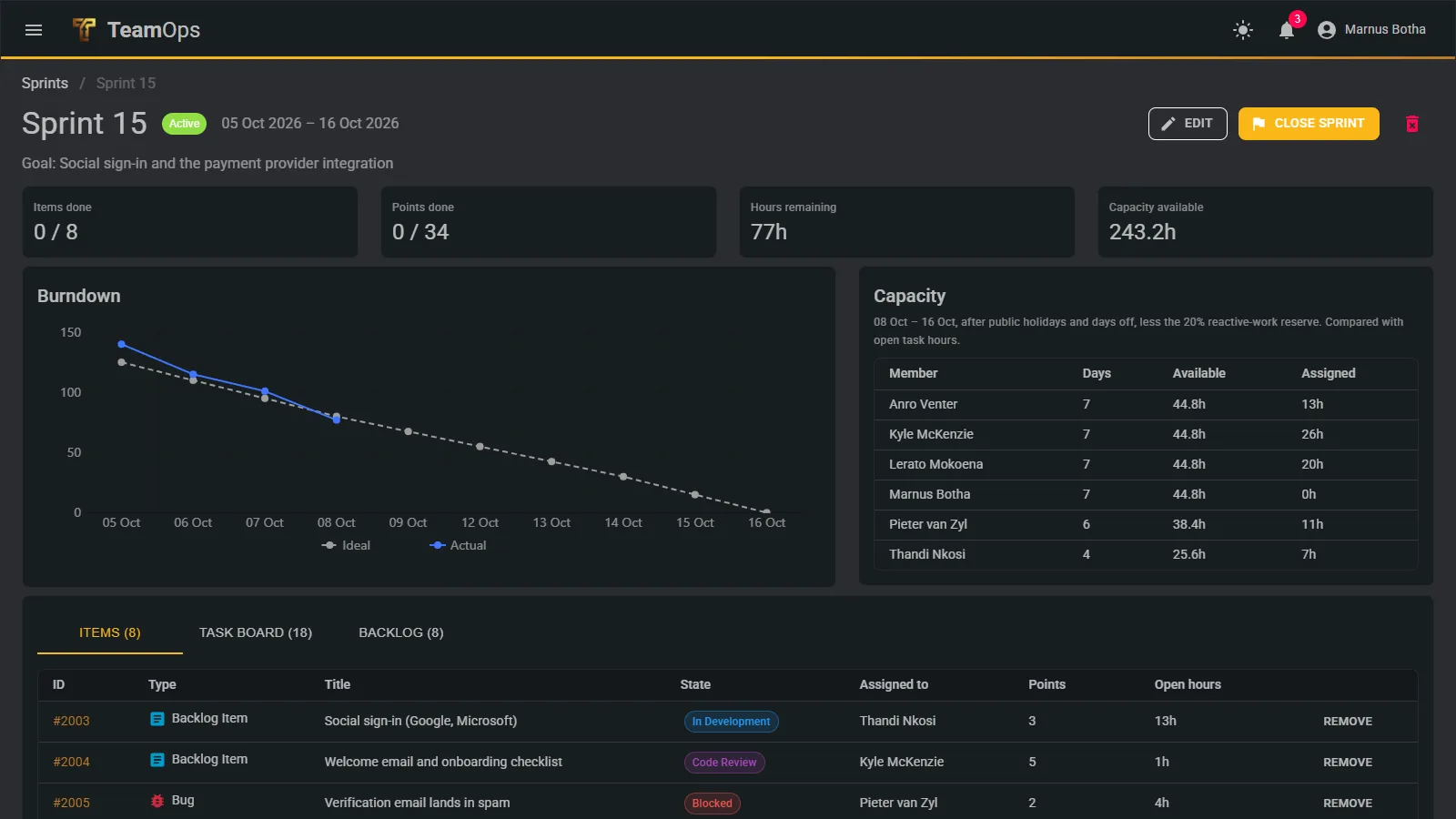
Plan a sprint with a name and dates; tasks come with their parent. Daily snapshots build a burndown against an ideal line that follows each day’s real team capacity, not a straight line.

  • What is left of the sprint, per person, against open task hours
  • Over-capacity highlighted
  • A warning when the sprint ends in two days
  • Closing a sprint moves unfinished items on
A sprint overview with burndown and capacity

Azure DevOps

The useful Azure DevOps views, and a few safe actions

Keep Azure DevOps as your system of record. TeamOps reads it, and writes only what is listed here; everything else is read-only.

See

  • My Tickets across projects, by area, system and state
  • Active pull requests, with "ready to merge" from policy checks
  • History and comments

Do

  • Assign by email
  • Create a task with estimates
  • Update state, feedback and discussion

Connect with a token you control

Each team connects with its own Azure DevOps access token, which TeamOps stores encrypted. Revoke it in Azure DevOps at any time.

Meeting notes

Meeting notes with an audit trail

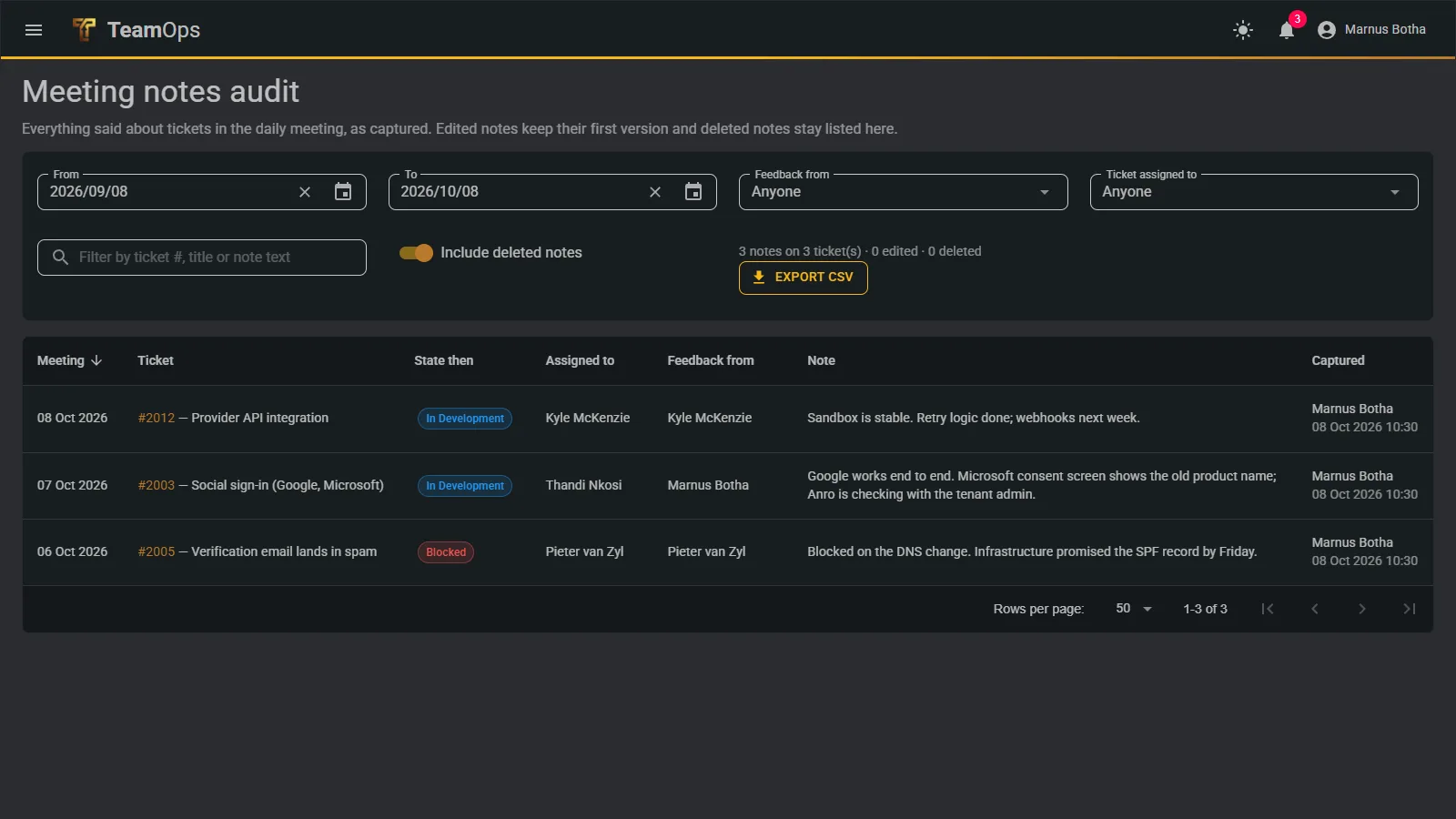
Capture notes against a ticket during a meeting. Only the author may edit or delete a note, whatever their role, and the history is kept, so what was agreed is never in dispute.

Meeting notes audit

Notifications

Told once, at the right time, live

A scan runs every 30 minutes. Each notice is unique per person, so the same thing is never told twice, and nobody is notified of their own action.

  • Due today or tomorrow, and overdue, to the assignee
  • Milestone overdue, due, behind or at risk, to the team
  • Tomorrow is a public holiday; the weekly commitment closes today
  • Assigned to you, new state, comment, @mention, new note

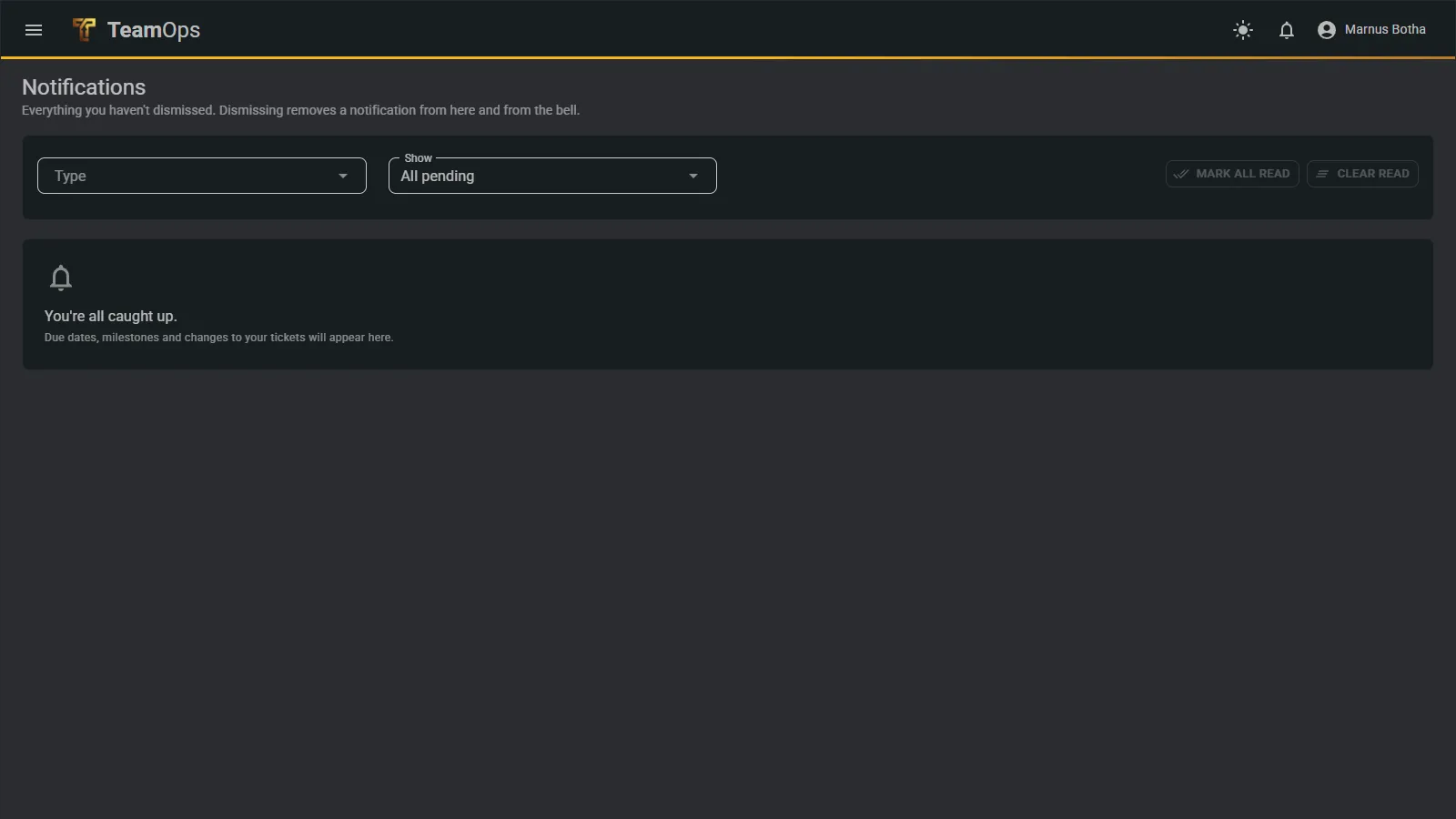
A bell with an unread count, and a live pop-up. Three or more unread become one summary.

The notifications list

People

Your profile, leave and sign-in security in one place

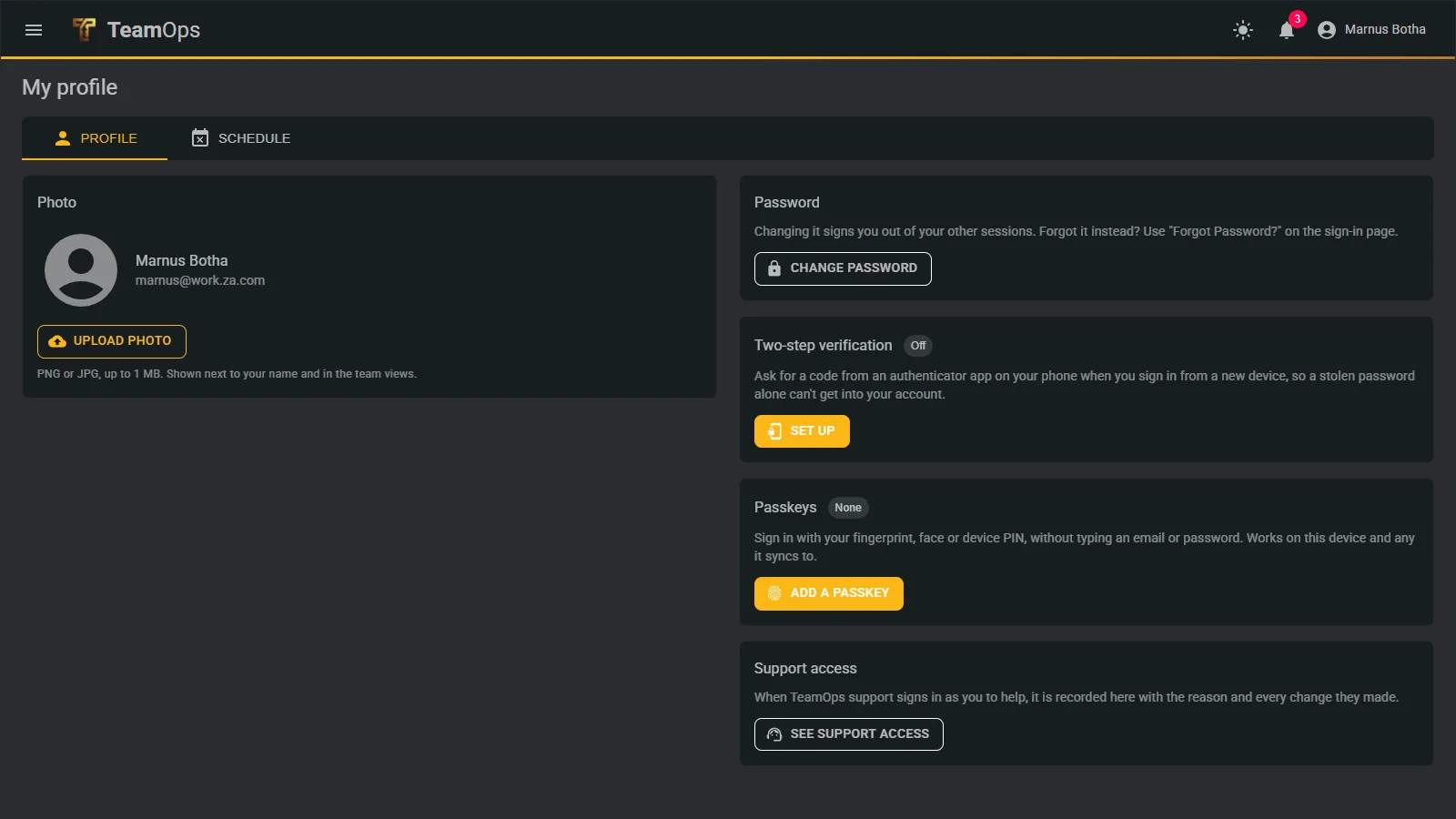
Everyone books their own leave, which feeds capacity straight away. The profile page is also where each person sets up passkeys, an authenticator app and trusted devices.

The profile page with sign-in security

Organisations, roles and support

One customer is an organisation. Customers never see each other.

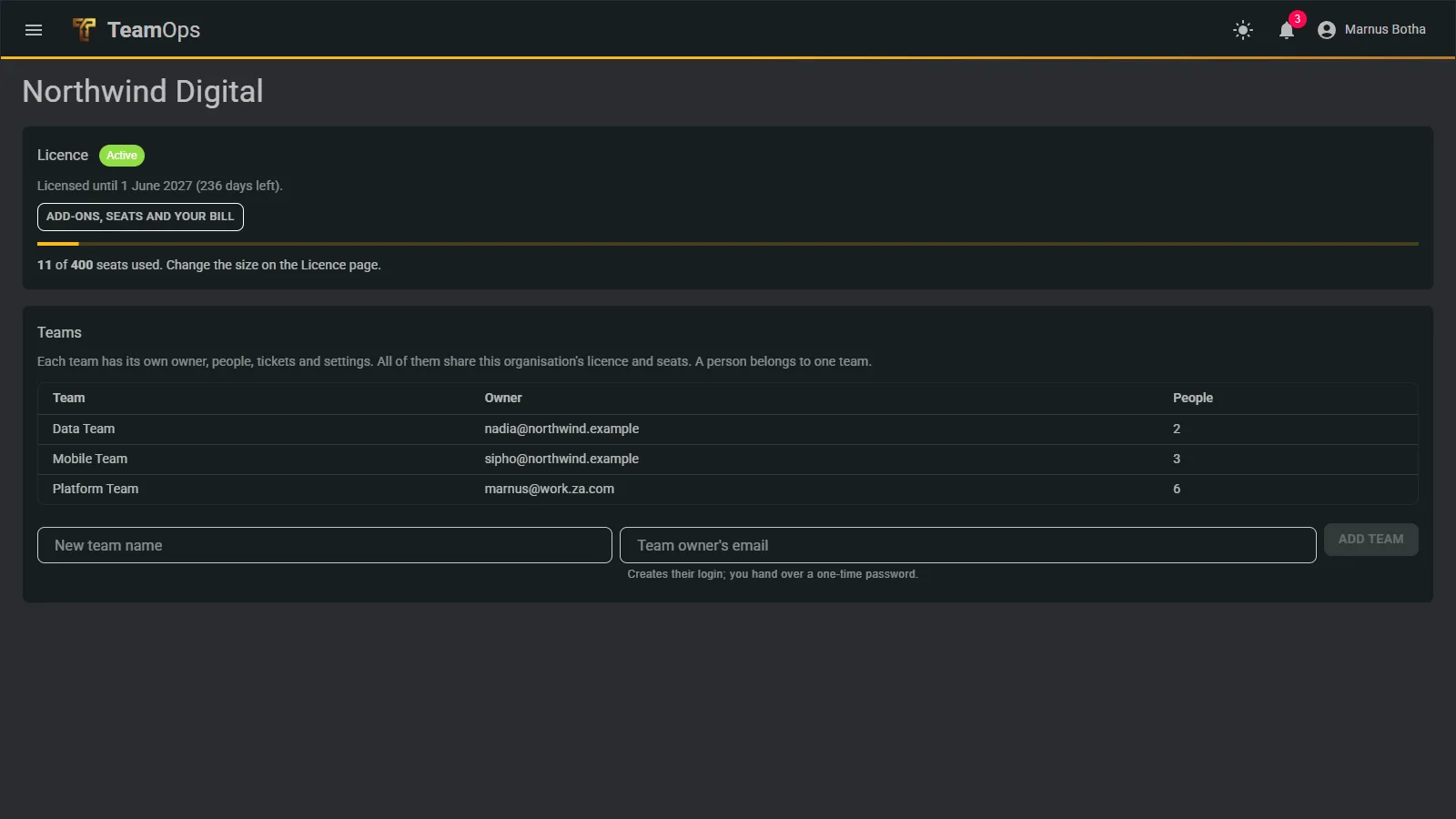
An organisation holds the licence and its teams. Inside it, roles decide who can do what.

RoleWhat they can doSees
Organisation ownerManages the licence and billing page and starts more teamsOwn organisation
ManagerA read-only look at every team of one organisationThat organisation, read-only
AdminTeam management, the error log and the notes auditOwn team and organisation
Team ownerRoster, logins for their people, team roles, availability and settingsOwn team
Team rolesViewer reads. Member creates and edits. Lead also deletes and manages shared viewsOwn team
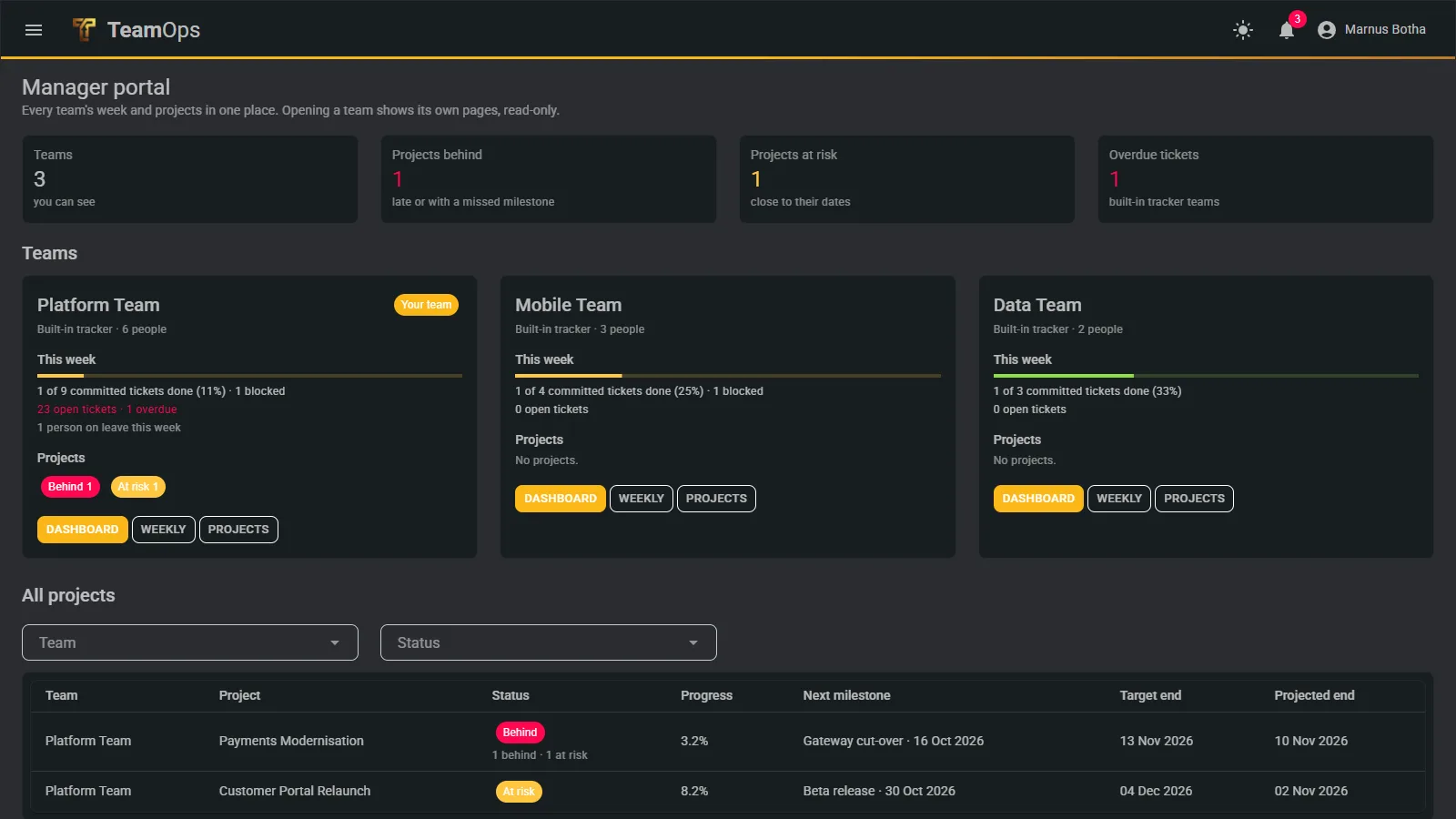
The manager portal showing every team of an organisation, read-only
The manager portal: every team in the organisation, read-only.
The organisation page with licence status, seats used and teams
The organisation page: licence, seats and teams.

Support

Help a customer by seeing exactly what they see, openly

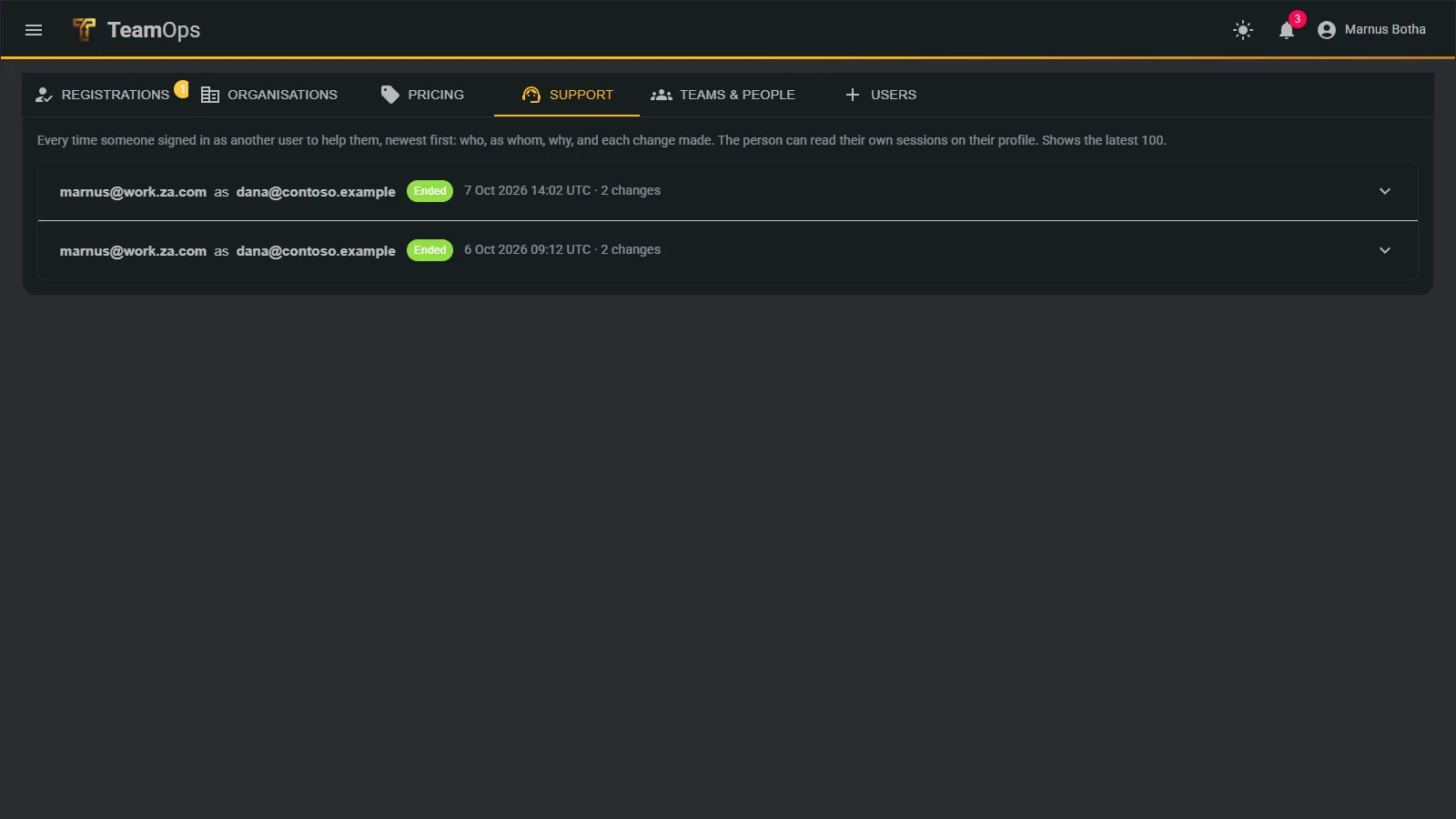
When someone phones with a problem, our support team can sign in as them to investigate. It is never silent.

  • A reason is required, and it is shown to the customer
  • A banner is visible throughout the session, which ends by itself after 90 minutes
  • Anything changed during the session is recorded and shown to the customer afterwards
  • Account settings, passwords and sign-in security cannot be changed while signed in as someone else
The support tab listing every session and what changed

Ready to see it with your own tickets?